Windows 'Uninstall' Leaves More Behind Than You'd Think
You clicked "Uninstall" in Windows Settings, watched the progress bar hit 100%, and the software still left 8GB of files in your AppData directory. Standard Windows uninstallation routines are notoriously sloppy. When software developers write uninstallers, they typically only remove the executable files inside Program Files. They intentionally leave behind configuration directories, local caches, and registry keys in case you decide to reinstall the application later.
What's Actually Going On
Windows uninstallation scripts run with standard application permissions and frequently leave behind files created by the user profile.
%APPDATA% (Roaming) and %LOCALAPPDATA% (Local) remain packed with caches, Electron binaries, and game assets long after an app is uninstalled.
Orphaned registry entries in HKEY_CURRENT_USER\Software and HKEY_LOCAL_MACHINE\Software can cause software conflict errors during future installations.
Where Windows Programs Leave Residual Bloat
1. Check %LOCALAPPDATA%\<VendorName>
Press Win+R, type %LOCALAPPDATA%, and look for folders belonging to apps you uninstalled months ago. Electron applications (like Discord, Slack, and old IDEs) frequently abandon multiple gigabytes of caches here.
2. Inspect %APPDATA%\<VendorName>
Roaming AppData holds configuration files, local databases, and custom themes. If you have permanently uninstalled a program, its corresponding folder can be safely deleted.
3. Check Orphaned Program Files Directories
Check C:\Program Files and C:\Program Files (x86) for empty or partially deleted software folders that the uninstaller failed to remove due to locked log files.
4. Exercise Caution with Manual Registry Cleaning
Never run aggressive third-party registry cleaners that claim to speed up your PC by deleting thousands of keys. Instead, only delete registry entries if a software reinstall is actively failing.
Caution: A corrupted Windows registry can prevent your system from booting properly. Never delete registry keys by hand unless you have created a full system restore point first.
We got tired of doing this manually — that's exactly why we built Orbit.
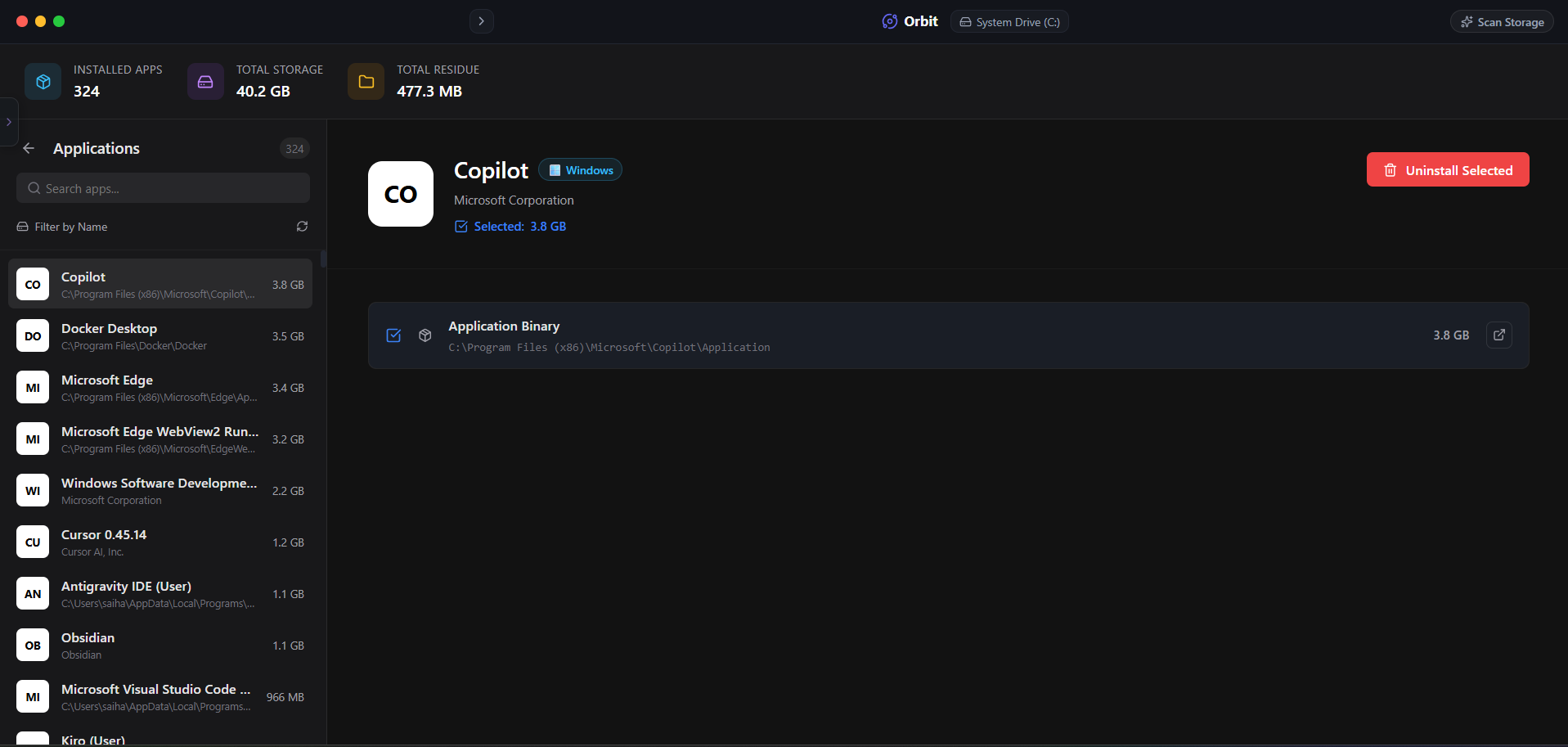 Orbit App Uninstaller maps all files and cleans up residual data safely without manual registry editing.
One More Thing
Some applications, such as graphics driver suites or antivirus packages, offer official "clean removal" utilities (like Display Driver Uninstaller or vendor-specific removal tools).
When uninstalling low-level system software, always prefer official vendor cleanup tools first.
The Verdict
Use Manual Method if: Use standard Windows Settings > Installed Apps if you only care about removing the main program shortcut and don’t mind lingering AppData.
Use Orbit if: Use Orbit if you want complete, residue-free uninstallation with automatic AppData cleanup and 30-day safety vault protection.
Finding these files too slow?
Orbit visualizes your entire drive — Mac and Windows both — so you see exactly where space is going before you delete anything.
Continue Reading
Dragging an app to Trash leaves behind caches, preferences, and support files — sometimes gigabytes. Here is how to find every leftover.
Read guide →What Is WinSxS and Why Is It 40GB on Your C: Drive?The WinSxS folder looks like 40GB of pure waste, but deleting it wrong can break your next Windows Update. Here's what's actually in there and how to shrink it safely.
Read guide →Why I Stopped Trusting 'One-Click Clean' ButtonsAutomated cleaners delete first and hope later. Here is why every file we remove sits in a recoverable vault for 30 days before it is actually gone.
Read guide →