System Restore Points Are Quietly Eating 20GB+ on Your C: Drive
Windows Volume Shadow Copies can silently commandeer 10% to 15% of your drive for forgotten restore snapshots you will never use. Whenever you install a hardware driver, receive an automatic update, or install certain desktop software, Windows creates a new System Restore checkpoint. Over six months, these snapshots silently consume 20GB to 50GB under the "System Volume Information" directory.
What's Actually Going On
System Restore relies on the Volume Shadow Copy Service (VSS), which tracks differential block-level changes across your NTFS file system.
Windows defaults to allocating up to 10% of your total drive capacity for shadow storage, meaning a 1TB SSD may dedicate up to 100GB to restore points.
File Explorer permissions completely hide the C:\System Volume Information folder, making this space appear as an unexplained "System Data" mystery.
How to Inspect and Cap Shadow Storage
1. Check Exact Allocated Shadow Space
Open PowerShell as Administrator and query the Volume Shadow Copy management utility. This prints out the used, allocated, and maximum allowable shadow copy storage.
vssadmin list shadowstorage2. Cap Shadow Storage to a Sane Limit (e.g., 10GB)
Set a hard limit on shadow storage so Windows automatically discards older restore points when the threshold is reached.
vssadmin resize shadowstorage /on=C: /for=C: /maxsize=10GB3. Purge Old Snapshots Keeping Only the Latest
Launch Disk Cleanup (cleanmgr), click "Clean up system files", open the "More Options" tab, and click "Clean up..." under System Restore and Shadow Copies.
Caution: Do not disable System Protection entirely. Keeping at least one recent restore point is critical if a driver update ever causes a blue screen.
We got tired of doing this manually — that's exactly why we built Orbit.
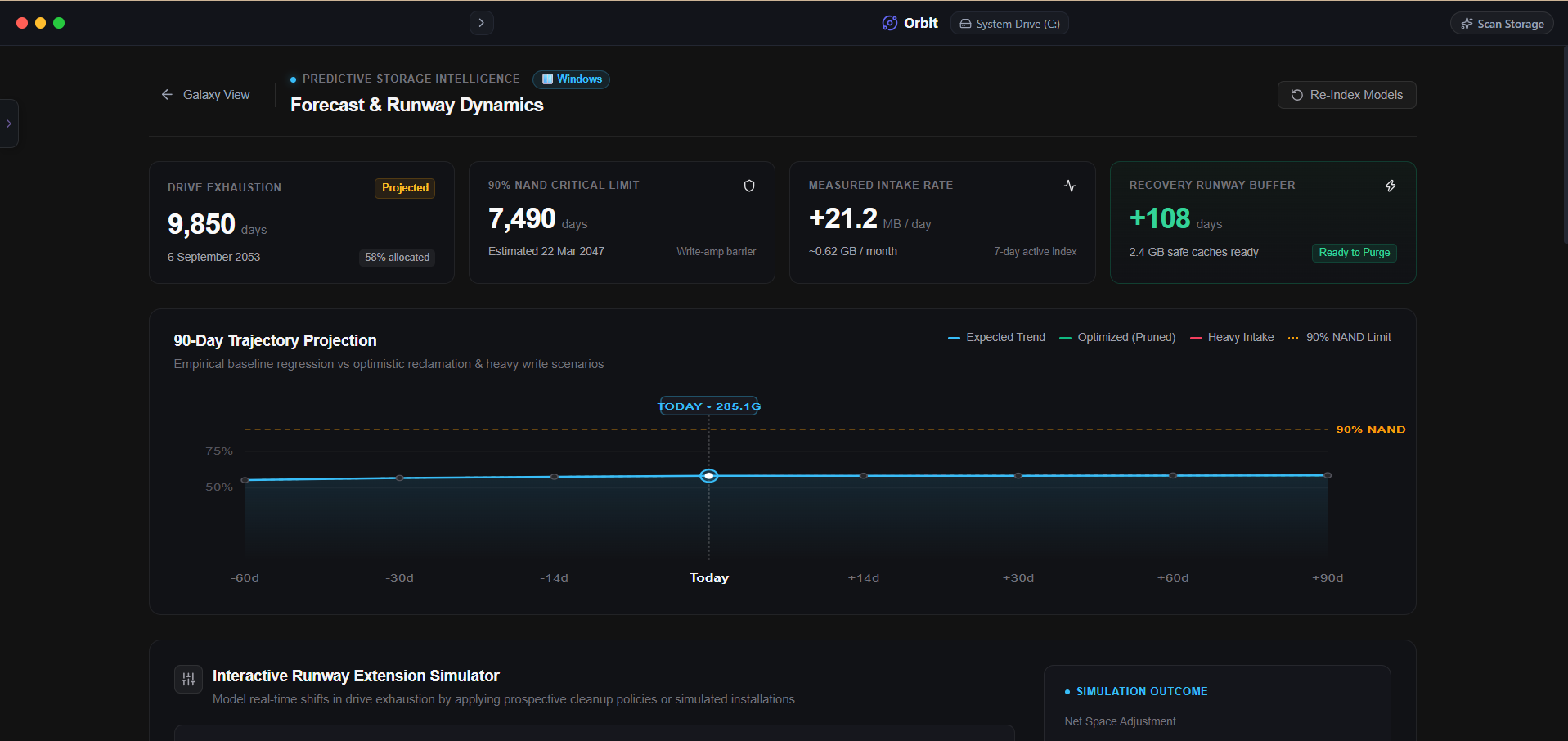 Orbit visually graphs hidden shadow copies and system data without command line queries.
One More Thing
If you use third-party imaging software like Macrium Reflect or Acronis, they may create their own custom shadow snapshots that vssadmin manages.
Always verify with vssadmin list shadows before running external partition resizing utilities.
The Verdict
Use Manual Method if: Use vssadmin resize shadowstorage if you want a permanent ceiling applied via terminal script.
Use Orbit if: Use Orbit if you want to see restore point usage mapped directly against your total disk budget.
Finding these files too slow?
Orbit visualizes your entire drive — Mac and Windows both — so you see exactly where space is going before you delete anything.
Continue Reading
These two system files are invisible by default and can quietly claim 10-20GB. Here is what each one does and when it is actually safe to shrink them.
Read guide →Windows.old Won't Delete Normally. Here's the Actual Fix.After a major update, a stubborn Windows.old folder appears and refuses to budge in File Explorer. Here is the safe way to clear 15GB+ without permissions errors.
Read guide →Why I Stopped Trusting 'One-Click Clean' ButtonsAutomated cleaners delete first and hope later. Here is why every file we remove sits in a recoverable vault for 30 days before it is actually gone.
Read guide →