Android Studio and Gradle Caches Are Eating 100GB on Windows Too
Android Studio quietly installs 12GB emulator snapshots and never deletes a single historical Gradle build daemon. Mobile developers know that Android development demands serious disk real estate. But few realize that every time you update Gradle, test on a different Android API level, or simulate a Pixel device, Android Studio creates permanent multi-gigabyte disk snapshots that persist indefinitely.
What's Actually Going On
Android Virtual Device (AVD) system images each allocate 8GB to 16GB of disk space in your user profile for raw filesystem images.
Gradle caches downloaded wrapper JARs and dependency artifacts in %USERPROFILE%\.gradle\caches without an automated retention expiration policy.
When you update an Android project from Gradle 7.x to 8.x, the entire previous multi-gigabyte cache remains untouched on your drive.
Where the Gigabytes Hide and How to Clean Them
1. Purge Unused Android Virtual Devices (AVDs)
Check %USERPROFILE%\.android\avd. Each .avd directory contains a userdata.img and snapshots that multiply over time. Open Android Studio > Virtual Device Manager and delete unused device configurations.
Get-ChildItem -Path "$HOME\.android\avd" -Directory2. Delete Stale Gradle Dependency Caches
Wipe %USERPROFILE%\.gradle\caches. When you next build an active project, Gradle will re-download only the exact dependencies currently in use.
Remove-Item -Path "$HOME\.gradle\caches\*" -Recurse -Force -ErrorAction SilentlyContinue3. Clear Android Build Tool SDK Artifacts
Check %LOCALAPPDATA%\Android\Sdk\system-images. Historical system images for Android 10, 11, and 12 can be removed if you only build for Android 14 and 15.
We got tired of doing this manually — that's exactly why we built Orbit.
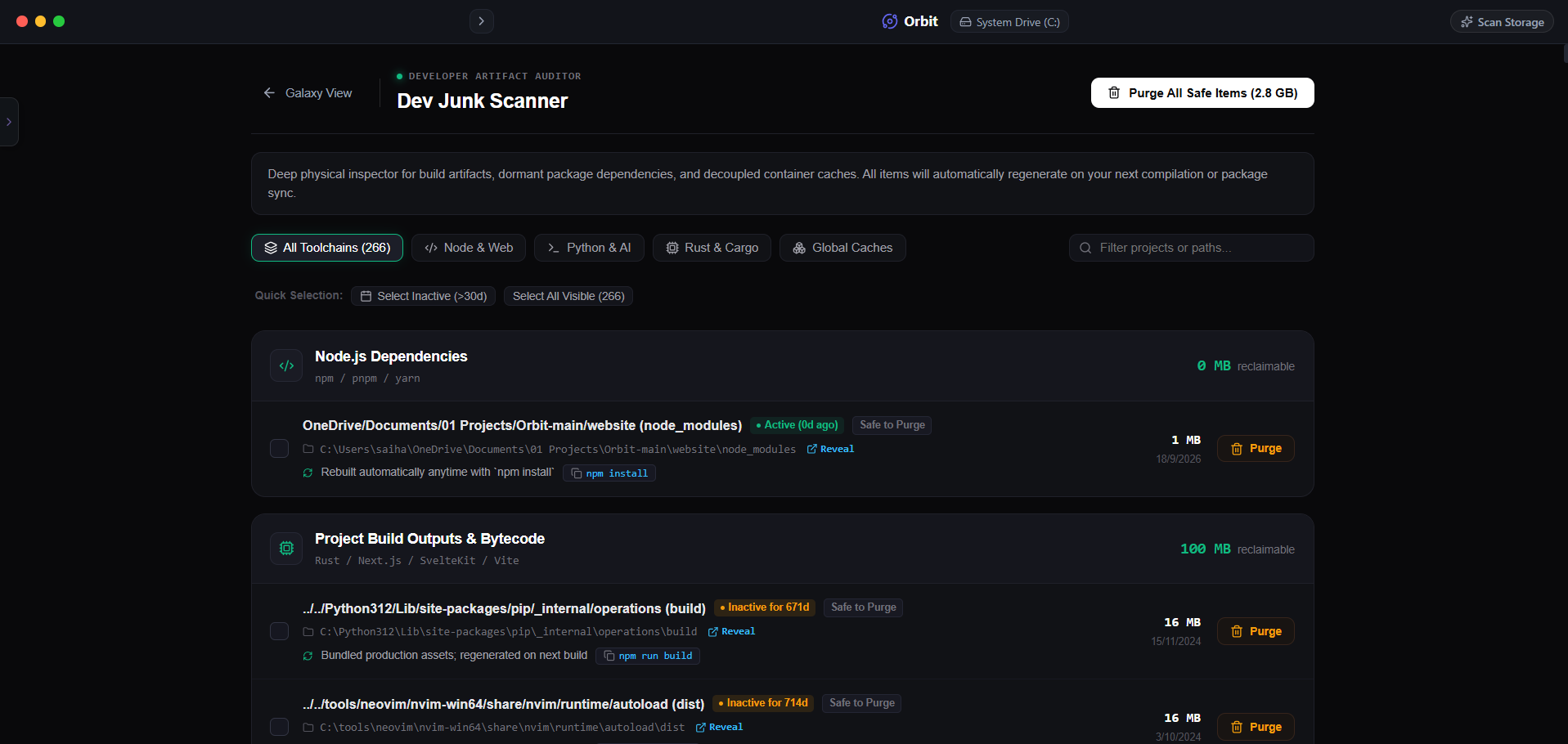 Orbit isolates mobile SDK caches and build artifacts in seconds.
One More Thing
After wiping your Gradle cache, your very first gradle assemble build will take several minutes to re-download active dependencies.
Do not clean your Gradle cache right before an urgent client demo when you might be on a slow or restricted internet connection.
The Verdict
Use Manual Method if: Use Android Studio’s built-in SDK Manager if you prefer manually checking off outdated SDK platforms one by one.
Use Orbit if: Use Orbit if you want to see all your IDE caches, emulator images, and build files in one comprehensive audit.
Finding these files too slow?
Orbit visualizes your entire drive — Mac and Windows both — so you see exactly where space is going before you delete anything.
Continue Reading
Every abandoned project on Windows has the same dead dependency folder as on Mac. Here is how to find every single one across your whole drive at once.
Read guide →Visual Studio's Hidden Build Cache Is Bigger Than You Thinkobj/ and bin/ folders multiply across every solution you have opened. Here is how to find and clear them without breaking active projects.
Read guide →Docker Desktop on Windows Is Eating 60GB and 'Clean Up' Didn't Fix ItDeleting images and containers doesn't shrink Docker's virtual disk on Windows any more than it does on Mac. Here is the WSL2 .vhdx problem and the real fix.
Read guide →