Windows Update Keeps Failing With 'Not Enough Disk Space' — Even Though You Have Space
File Explorer says you have 15GB free, but Windows Update still fails with error code 0x80070070 (ERROR_DISK_FULL). This is one of the most frustrating loops in Windows. You clear out a few video files, see a green bar on your C: drive, hit retry, and watch the update fail at 35%. The reason is that Windows Update does not just need space for the download — it needs contiguous staging space for rollback archives.
What's Actually Going On
A 4GB cumulative update package actually requires up to 20GB of temporary working space during extraction, installation, and sandbox verification.
Windows reserves a staging buffer in C:\Windows\SoftwareDistribution\Download, builds a temporary rollback structure, and extracts patch manifests all simultaneously.
If your free space is heavily fragmented across thousands of tiny cluster gaps, Windows Update will report insufficient contiguous capacity even if total free bytes look sufficient.
Steps to Clear Real Staging Space
1. Purge the SoftwareDistribution Download Cache
Stop the Windows Update service, delete stale half-downloaded update CAB files, and restart the service. This frequently recovers 5GB to 12GB of stuck cache files.
net stop wuauserv; net stop bits; Remove-Item -Path "C:\Windows\SoftwareDistribution\Download\*" -Recurse -Force; net start bits; net start wuauserv2. Clean the Component Store via DISM
Run a DISM component cleanup to eliminate superseded update deltas, freeing up 3GB to 8GB of critical system partition room.
Dism.exe /online /Cleanup-Image /StartComponentCleanup3. Clear Stale Windows Error Reporting Dumps
Crash dumps in C:\ProgramData\Microsoft\Windows\WER can quietly accumulate tens of gigabytes after repeated failed update attempts.
Remove-Item -Path "C:\ProgramData\Microsoft\Windows\WER\*" -Recurse -Force -ErrorAction SilentlyContinueWe got tired of doing this manually — that's exactly why we built Orbit.
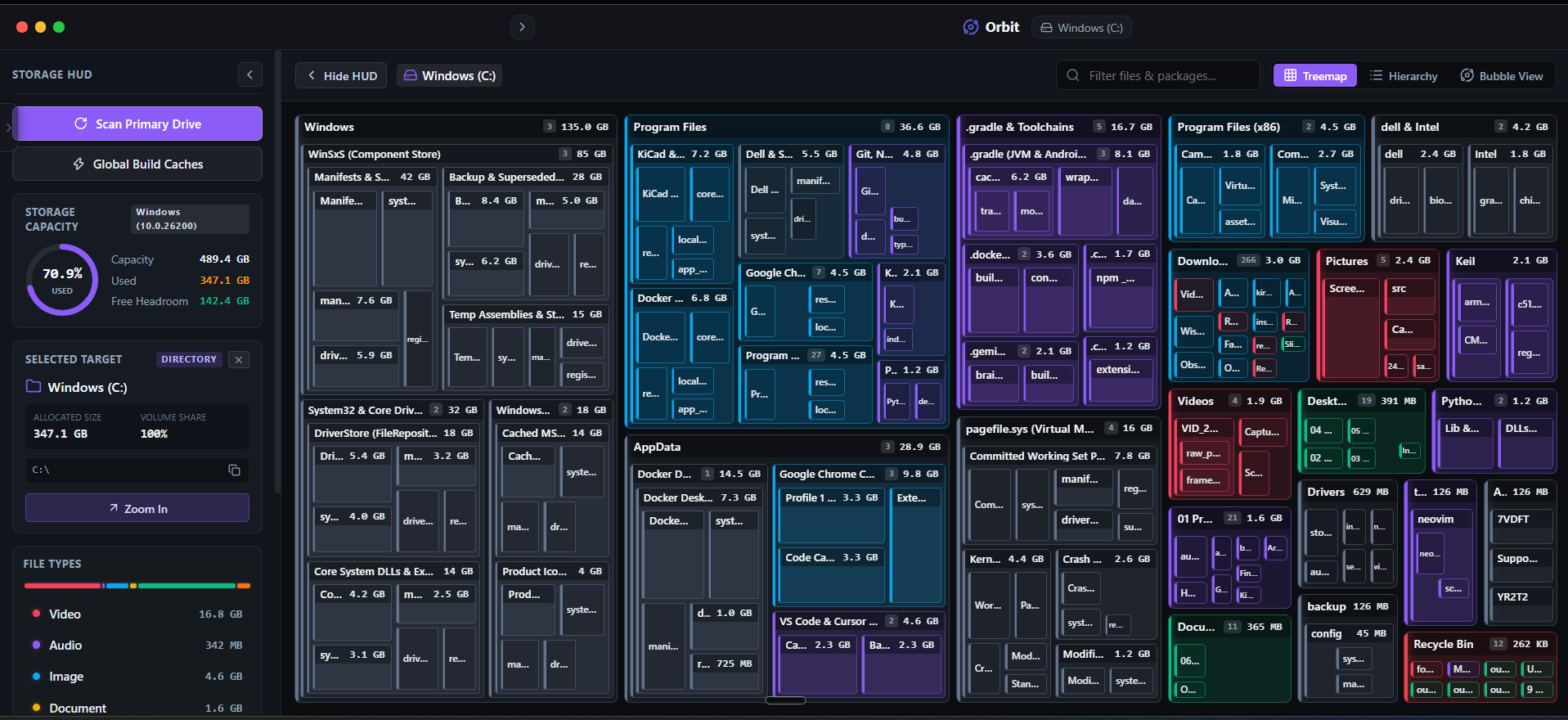 Orbit reveals your true reclaimable drive headroom so updates never fail mid-install.
One More Thing
You can attach an external USB flash drive (32GB or larger) when Windows Update prompts for additional space.
Windows will use the external USB drive as a temporary overflow staging area during the installation process, keeping your internal SSD from running out of space.
The Verdict
Use Manual Method if: Use the SoftwareDistribution purge commands if your update is already stuck in an endless download loop.
Use Orbit if: Use Orbit if you want to identify and purge large throwaway caches across your whole drive before triggering updates.
Finding these files too slow?
Orbit visualizes your entire drive — Mac and Windows both — so you see exactly where space is going before you delete anything.
Continue Reading
The WinSxS folder looks like 40GB of pure waste, but deleting it wrong can break your next Windows Update. Here's what's actually in there and how to shrink it safely.
Read guide →Windows.old Won't Delete Normally. Here's the Actual Fix.After a major update, a stubborn Windows.old folder appears and refuses to budge in File Explorer. Here is the safe way to clear 15GB+ without permissions errors.
Read guide →Uninstalling an App on Mac Doesn't Actually Delete ItDragging an app to Trash leaves behind caches, preferences, and support files — sometimes gigabytes. Here is how to find every leftover.
Read guide →